

Clustering and high availability
A cluster lets several VM2Cloud VE nodes be managed as one system: you sign in to any node and see them all, and virtual machines can move between them. High availability builds on that, restarting a machine on a surviving node if the one hosting it fails.
Before you begin
Section titled “Before you begin”- Every node must already be installed and reachable on its management address. See Installing VM2Cloud VE.
- Node clocks must be synchronised. This is the single most common cause of cluster problems — see Fixing “Authentication failed! (401)”.
- Node names must be unique, and each node must resolve the others’ names or addresses.
- Use three or more nodes if you want high availability. Two nodes cannot establish a majority on their own; see Quorum below.
1. Create the cluster on the first node
Section titled “1. Create the cluster on the first node”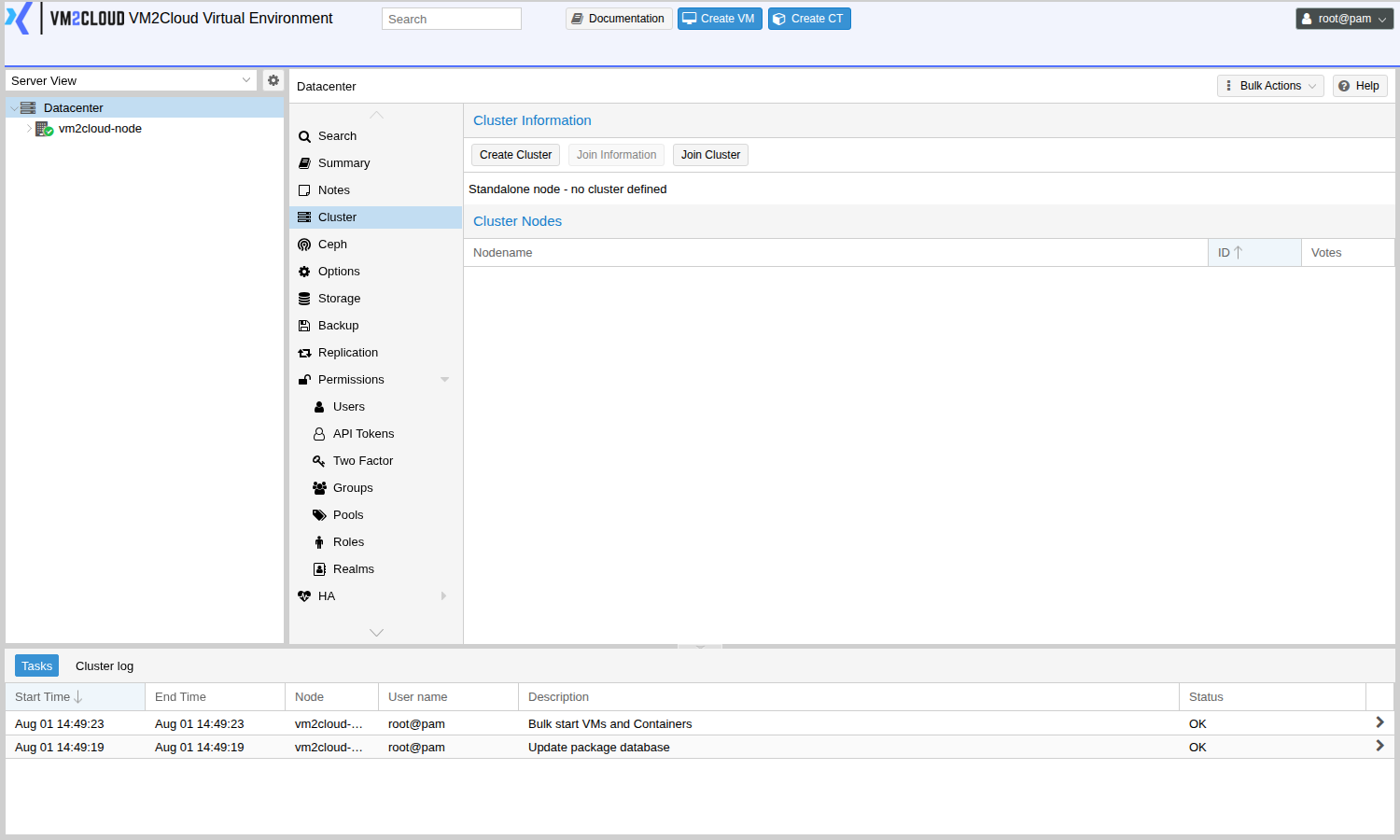
- Sign in to the node that will be first — the one with your existing machines, if any.
- Open Datacenter → Cluster.
- Click Create Cluster.
- Enter a Cluster Name.
- Leave Cluster Network on the management address unless you have a separate network set aside for cluster traffic.
- Click Create.
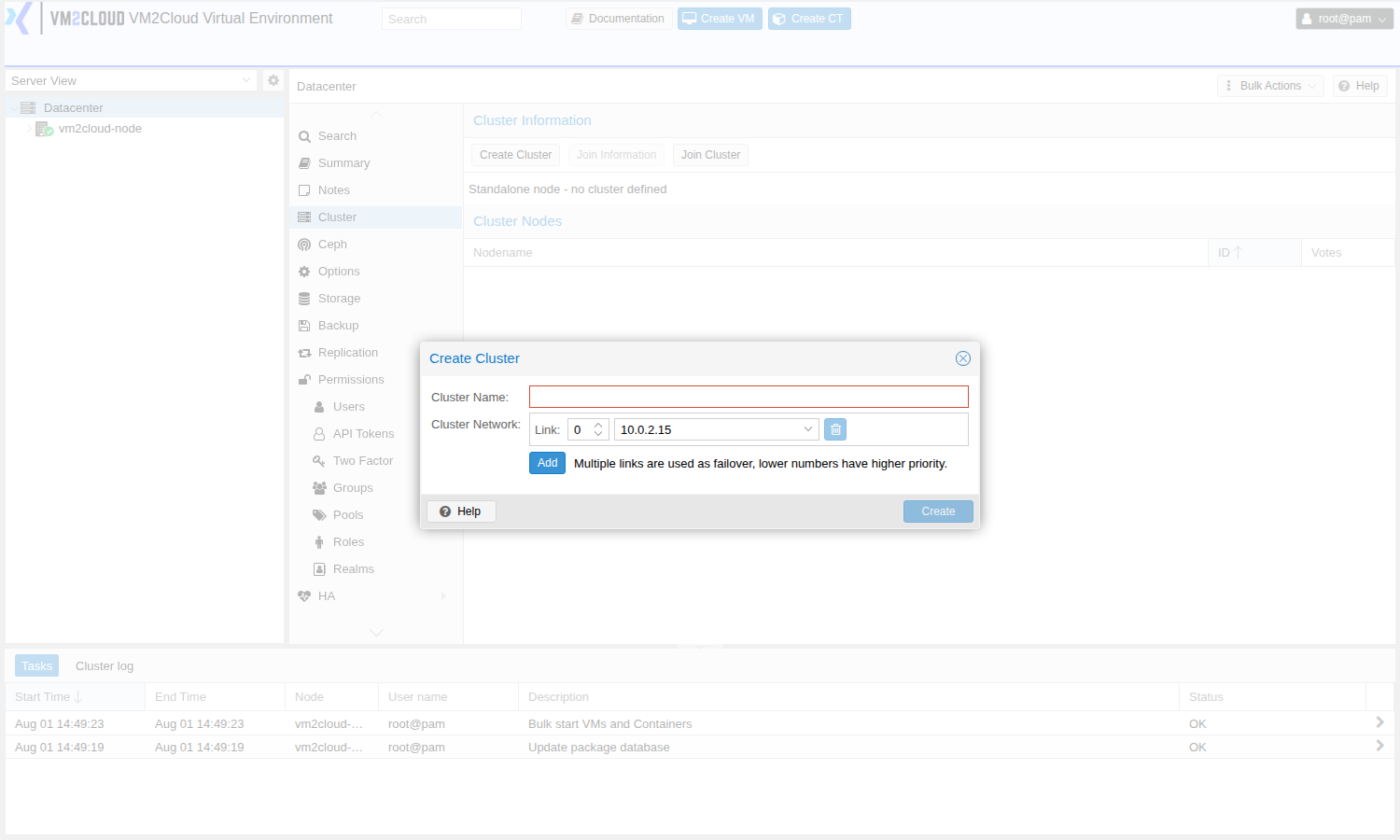
When the task finishes, Datacenter → Cluster shows the cluster name and this node as its only member.
2. Copy the join information
Section titled “2. Copy the join information”Still on the first node:
- Open Datacenter → Cluster.
- Click Join Information.
- Click Copy Information.
This string contains everything a joining node needs, including the fingerprint it will use to verify it is talking to the right cluster.
3. Join the other nodes
Section titled “3. Join the other nodes”On each additional node, one at a time:
- Sign in to that node directly on its own management address.
- Open Datacenter → Cluster.
- Click Join Cluster.
- Paste the join information into Information. The address and fingerprint fill in automatically.
- Enter the root password of the first node — not of the node you are sitting on.
- Click Join.
The node restarts its cluster services and the web interface may drop briefly. Once it returns, every node appears in the Server View on the left, whichever node you signed in to.
4. Check cluster health
Section titled “4. Check cluster health”- Open Datacenter → Cluster to see every member and whether it is online.
- Open Datacenter → Summary. The Health panel at the top summarises the cluster’s overall state.
Every node should be listed and online before you go further.
Quorum — why three nodes
Section titled “Quorum — why three nodes”A cluster only makes changes when a majority of its nodes can talk to each other. That majority is called quorum, and it is what stops two halves of a split cluster both deciding they are in charge and corrupting shared state.
| Nodes | Majority needed | Failures survived |
|---|---|---|
| 2 | 2 | 0 — losing either node stops the cluster making changes |
| 3 | 2 | 1 |
| 4 | 3 | 1 |
| 5 | 3 | 2 |
Two nodes is the awkward case: each has one vote, neither can reach a majority alone, so losing one leaves the survivor unable to act. Notice also that four nodes tolerates no more failures than three — odd numbers are what buy you resilience.
Running machines keep running when quorum is lost — what stops is changing things: creating, starting, migrating and HA recovery.
5. Make a virtual machine highly available
Section titled “5. Make a virtual machine highly available”With a quorate cluster of three or more nodes:
- Open Datacenter → HA.
- Under Resources, click Add.
- Select the VM by its ID.
- Set Max. Restart and Max. Relocate if you want to change how many times the cluster retries locally before moving the machine elsewhere.
- Set Request State to started.
- Click Add.
The machine is now managed by the cluster. If its node fails, a surviving node starts it.
Controlling where machines run
Section titled “Controlling where machines run”Open Datacenter → HA → Affinity Rules to influence placement — for example keeping two machines apart so a single node failure cannot take out both, or preferring a particular node while it is available.
6. Test the failover
Section titled “6. Test the failover”Do this before you depend on it, and during a maintenance window:
- Note which node currently runs the HA machine.
- Power off that node abruptly — pull the power or use the remote console’s power control. A clean shutdown is not a realistic failure test.
- Watch Datacenter → HA. After the cluster fences the missing node, the machine’s state moves to a surviving node and it starts there.
- Bring the failed node back and confirm it rejoins.
Recovery is deliberately not instantaneous: the cluster waits long enough to be certain the node is genuinely gone rather than briefly unreachable.
If something goes wrong
Section titled “If something goes wrong”| What you see | What to do |
|---|---|
| Authentication failed! (401) when selecting another node | Node clocks have drifted. See Fixing “Authentication failed! (401)”. |
| The join fails to connect | Confirm you entered the first node’s root password, and that the two nodes can reach each other on the management network. |
| A node shows offline but is running | Check the cluster network between nodes, and confirm nothing is filtering traffic between them. |
| The cluster will not make changes | Quorum has been lost. Bring nodes back until a majority is online. |
| An HA machine does not restart elsewhere | Confirm its disks are on storage the other nodes can reach, and that the cluster still has quorum. |
| Joining is refused with a licence message | The node needs an active licence before it can join. |
Still stuck? Contact VM2Cloud support.