

Disks and local storage
node → Disks is where physical hardware becomes usable storage. It has five entries: the disk list itself, and one each for LVM, LVM-Thin, Directory and ZFS.
Preparing storage here is only half the job. The other half is publishing it under Datacenter → Storage so machines can use it — see Storage management.
Checking disk health
Section titled “Checking disk health”node → Disks lists every disk and partition with its size, model, serial number and health.
| Column | What to look at |
|---|---|
| S.M.A.R.T. | PASSED is what you want. Anything else means replace it. |
| Wearout | On SSDs, how much of the drive’s write endurance is used. This is the number that predicts replacement. |
| Usage | What the disk is currently used for |
| Serial | The only reliable way to identify a physical disk |
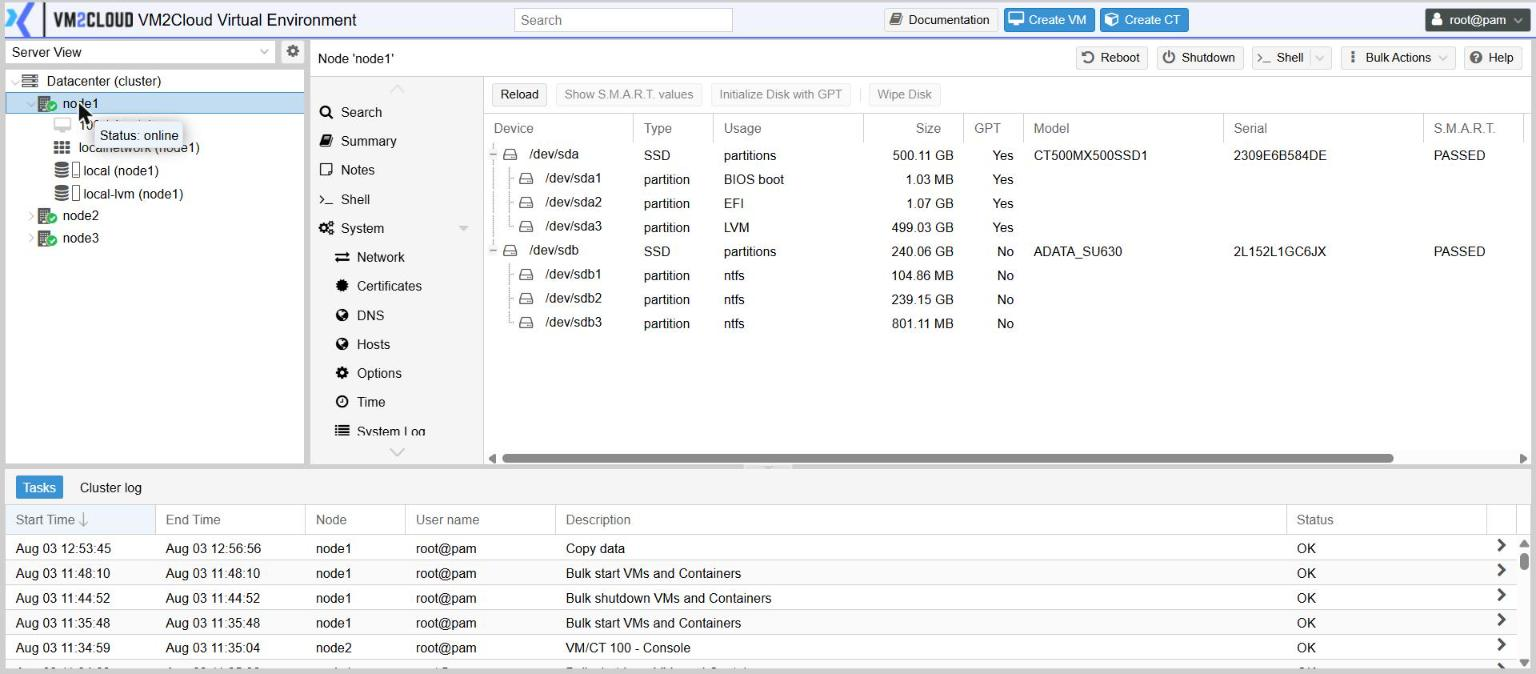
Show S.M.A.R.T. values opens the full attribute list for the selected disk.
Initialize Disk with GPT prepares a blank disk so it can be used. It is a prerequisite for the other panels, not a destructive operation on a disk that is already empty.
Choosing what to build
Section titled “Choosing what to build”| Build | When |
|---|---|
| ZFS | Machine disks, when you want snapshots, checksums, compression — and when you want replication, which requires it |
| LVM-Thin | Machine disks with space allocated as it is used. The default on a standard installation. |
| LVM | Machine disks with space allocated up front, and the layer to put on top of shared block storage |
| Directory | A plain filesystem for ISO images, backups and templates |
node → Disks → ZFS lists any pools with their size, free space, fragmentation and health.
Create: ZFS builds a pool from selected disks. You choose a name, the disks, and a RAID level determining how much redundancy you get and how much capacity you keep.
Detail shows the pool’s layout and each device’s state. Health is the column to watch — it is where a failing member shows up.
LVM and LVM-Thin
Section titled “LVM and LVM-Thin”LVM lists volume groups with how much is assigned and how much is free. Create: Volume Group builds one from a disk.
LVM-Thin lists thin pools. A default installation has one, which backs the local-lvm
storage. Create: Thinpool adds another.
The thin-pool list shows two independent sets of figures, and both can run out:
| Columns | Meaning |
|---|---|
| Usage, Size, Used | Data space |
| Metadata Usage, Metadata Size, Metadata Used | Bookkeeping space |
Directory
Section titled “Directory”Create: Directory formats a disk with a filesystem and mounts it, ready to be added as a Directory storage. Use it for a disk dedicated to ISO images, templates or backups.
Making it available to machines
Section titled “Making it available to machines”Some Create: dialogs offer to add the storage to the cluster at the same time. Where they do not, or if you cleared that option, finish the job yourself:
- Open Datacenter → Storage.
- Add the matching type — ZFS, LVM, LVM-Thin or Directory.
- Point it at what you created, set Content, set Nodes, and click Add.
A pool or volume group that exists on the node but was never added here will not appear anywhere machines can use it. That is almost always the explanation when new storage “does not show up”.
If something goes wrong
Section titled “If something goes wrong”| What you see | What to do |
|---|---|
| A disk is not offered when creating a pool | It is in use, or has no partition table. Check Usage, then Initialize Disk with GPT. |
| New storage does not appear when creating a machine | It was prepared on the node but never added under Datacenter → Storage. |
| “no space left” although the pool looks empty | The thin pool’s metadata is full. Check the metadata columns. |
| A ZFS pool shows a health warning | A member device is failing. Use Detail to identify it, and replace it. |
| A disk vanished after a reboot | Device names renumber. Identify disks by serial number. |
Still stuck? Contact VM2Cloud support.