

Datacenter menu reference
Select Datacenter at the top of the tree and the content panel offers the settings that apply to the whole system. This page lists every entry, in menu order, so you can tell at a glance what lives where.
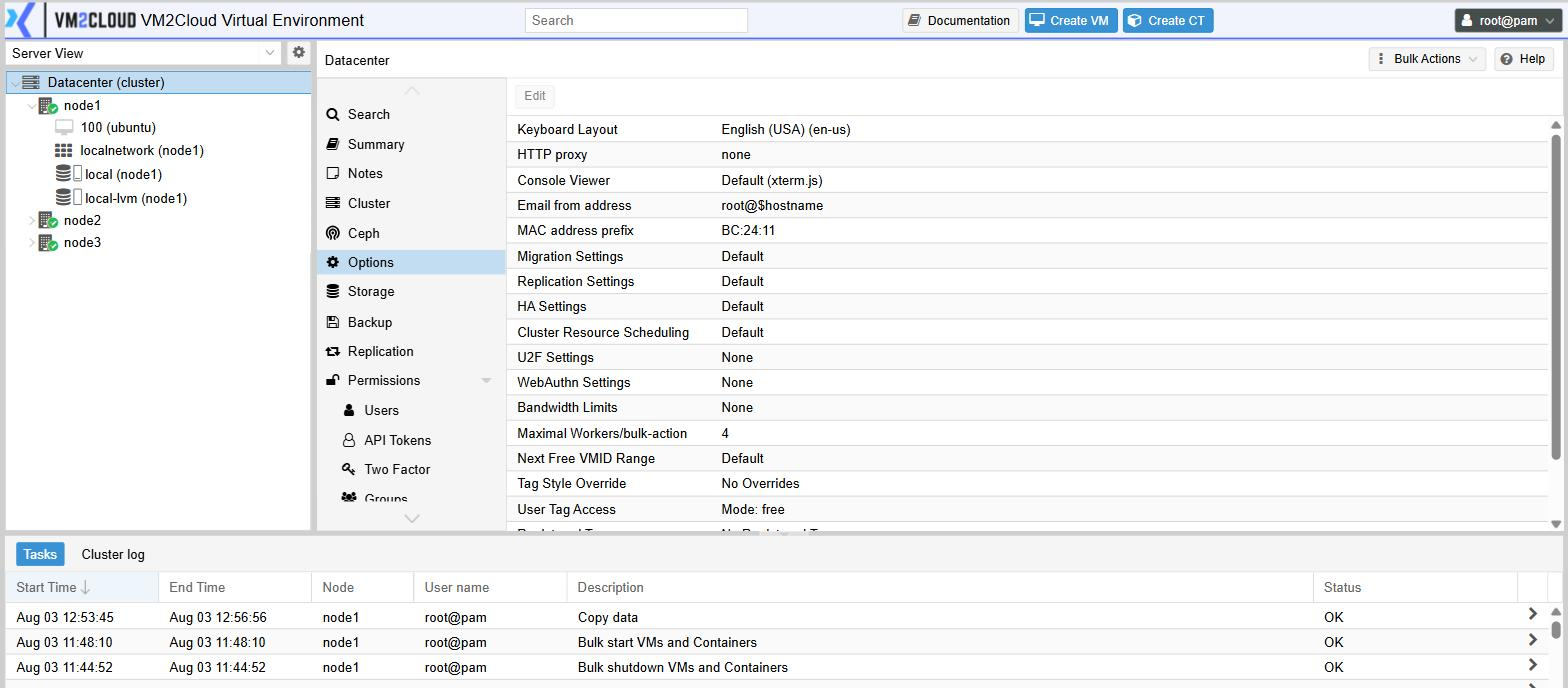
Entries marked cluster-wide apply to every node; per-node equivalents exist for several of them under the node menu.
At a glance
Section titled “At a glance”| Entry | What it is for |
|---|---|
| Search | Find any machine, storage or node |
| Summary | Overall health and the node roster |
| Notes | A shared note on the whole system |
| Cluster | Create a cluster, or join a node to one |
| Ceph | Hyper-converged storage across nodes |
| Options | Cluster-wide defaults |
| Storage | Define where machines, images and backups live |
| Backup | Scheduled backup jobs |
| Replication | Scheduled copies of a machine to another node |
| Permissions | Users, groups, roles, tokens, two-factor |
| HA | Restart machines automatically after a node failure |
| SDN | Virtual networks for guests |
| ACME | Automatic certificates |
| Firewall | Cluster-wide firewall rules and reusable objects |
| Metric Server | Send metrics to an external system |
| Resource Mappings | Name a physical device once, across nodes |
| Directory Mappings | Name a host directory once, across nodes |
| Custom CPU models | Define a CPU model machines can share |
| Notifications | Where alerts are sent |
| Support | Licensing, documentation and source links |
Search
Section titled “Search”A single list of every machine, storage and node, with disk, memory and CPU usage alongside. Filter it with the box at the top right.
The quickest way to answer “where is machine 104?” or “which storage is nearly full?” without expanding the tree.
Summary
Section titled “Summary”Health at the top summarises the cluster’s overall state. Below it, every node is listed with its address, CPU and memory use, and uptime — so you can see at a glance whether all nodes are online.
Check this first whenever anything looks wrong.
A free-text note attached to the whole system, visible to every administrator. Markdown is supported.
A good place for the things people ask each other: who owns which machines, when the maintenance window is, who to call.
Each node has its own separate note under node → Notes.
Cluster
Section titled “Cluster”Create a cluster, produce the information another node needs to join, and see the current members and their addresses.
Covered step by step in Clustering and high availability.
Storage that spans the nodes themselves, so machines can run anywhere without separate shared storage hardware. Not installed by default — the panel offers to install it.
Options
Section titled “Options”Cluster-wide defaults: console keyboard layout, notification sender address, migration and replication settings, bandwidth limits, tag policy, and more.
See Datacenter options for every setting and what it does.
Storage
Section titled “Storage”Define the storages the cluster can use, what each may hold, and which nodes can reach it.
See Storage management.
Backup
Section titled “Backup”Scheduled backup jobs: what to back up, when, where to, how long to keep it, and who to tell when it fails.
See Backups and restore.
Replication
Section titled “Replication”Copies a machine’s disks to another node on a schedule, so a recent copy already exists elsewhere. This is what makes high availability possible when machines are on local storage rather than shared storage.
See Replication.
Permissions
Section titled “Permissions”Seven entries covering access control:
| Entry | What it holds |
|---|---|
| (the top entry) | The permission list itself — who has which role, at which path |
| Users | Individual accounts |
| API Tokens | Credentials for scripts and integrations |
| Two Factor | Second factors enrolled per account |
| Groups | Collections of users to grant permissions to |
| Pools | Collections of machines and storages to grant permissions on |
| Roles | Named bundles of privileges, including the built-in ones |
| Realms | Where accounts come from — local, or a central directory |
See Users, roles and permissions.
High availability, with two sub-entries:
| Entry | What it holds |
|---|---|
| (the top entry) | Which machines are protected, and cluster HA status |
| Affinity Rules | Which nodes a machine prefers, and which machines must stay apart |
| Fencing | How the cluster makes certain a failed node has really stopped |
See High availability.
Virtual networks that guests attach to instead of a plain bridge, with address management, per-network firewalling and, for larger designs, routed overlays.
See Software-defined networking.
Register with a certificate authority once for the whole cluster, and set up how it will verify you control your domains. Each node then requests its own certificate.
See Certificates.
Firewall
Section titled “Firewall”Cluster-wide firewall rules, plus the reusable objects rules refer to:
| Entry | What it holds |
|---|---|
| (the top entry) | The cluster-wide rule list |
| Options | The master on/off switch and logging settings |
| Security Group | A named set of rules you can insert anywhere |
| Alias | A name for one address or network |
| IPSet | A name for a collection of addresses or networks |
See Firewall.
Metric Server
Section titled “Metric Server”Sends node and machine metrics to an external time-series system — Graphite, InfluxDB or OpenTelemetry — so you can keep long-term history, build dashboards and alert on trends.
See Notifications and monitoring.
Resource Mappings
Section titled “Resource Mappings”Gives a physical PCI or USB device one name across the whole cluster, mapped to the real device on each node — which may sit at a different address on each.
A machine configured against the name can start on any node that has an equivalent device, and can be migrated between them. Without a mapping, a machine using a passed- through device is stuck on one node.
Directory Mappings
Section titled “Directory Mappings”The same idea for a directory on the host: one name, a real path per node. Used by the Virtiofs hardware type, which shares a host directory into a machine.
Custom CPU models
Section titled “Custom CPU models”Define a CPU model once and select it on machines.
Most useful in a cluster whose servers are not all the same generation: pinning a model every node can provide means live migration between older and newer hardware does not fail because the destination lacks an instruction set.
Notifications
Section titled “Notifications”Where alerts go — mail, a chat system via a webhook, or a push service — and rules deciding which events go where.
See Notifications and monitoring.
Support
Section titled “Support”Links to the VM2Cloud licensing portal, this documentation, and the source for the version you are running. Also states whether this installation is activated.