Virtual machine and container menu
Select a virtual machine or container in the tree and the content panel offers everything about that one guest. Four buttons stay in the toolbar wherever you are:
| Button | What it does |
|---|---|
| Start / Shutdown | Power the guest on, or ask its operating system to shut down |
| Migrate | Move it to another node |
| Console | Open its screen and keyboard |
| More | Clone, convert to template, manage high availability, remove |
At a glance
Section titled “At a glance”| Entry | What it is for |
|---|---|
| Summary | Status and usage graphs |
| Console | The guest’s screen and keyboard |
| Hardware | CPU, memory, disks, network adapters, devices |
| Cloud-Init | First-boot user, password, keys and addressing |
| Options | Boot behaviour, guest agent, protection |
| Task History | What has been done to this guest |
| Monitor | Low-level diagnostics, used with support |
| Backup | Back up now, and restore from an archive |
| Replication | Copies of this guest on other nodes |
| Snapshots | Point-in-time states you can roll back to |
| Firewall | Rules for this guest’s network adapters |
| Permissions | Who may use this guest |
Containers have no Cloud-Init or Monitor, and add Resources, Network and DNS — the container equivalents of the hardware settings.
Summary
Section titled “Summary”Status and time-series graphs for this guest: CPU, memory, disk and network. Its notes field sits here too.
Console
Section titled “Console”Opens the guest’s screen and keyboard in the browser.
Hardware
Section titled “Hardware”Everything the guest believes it has.
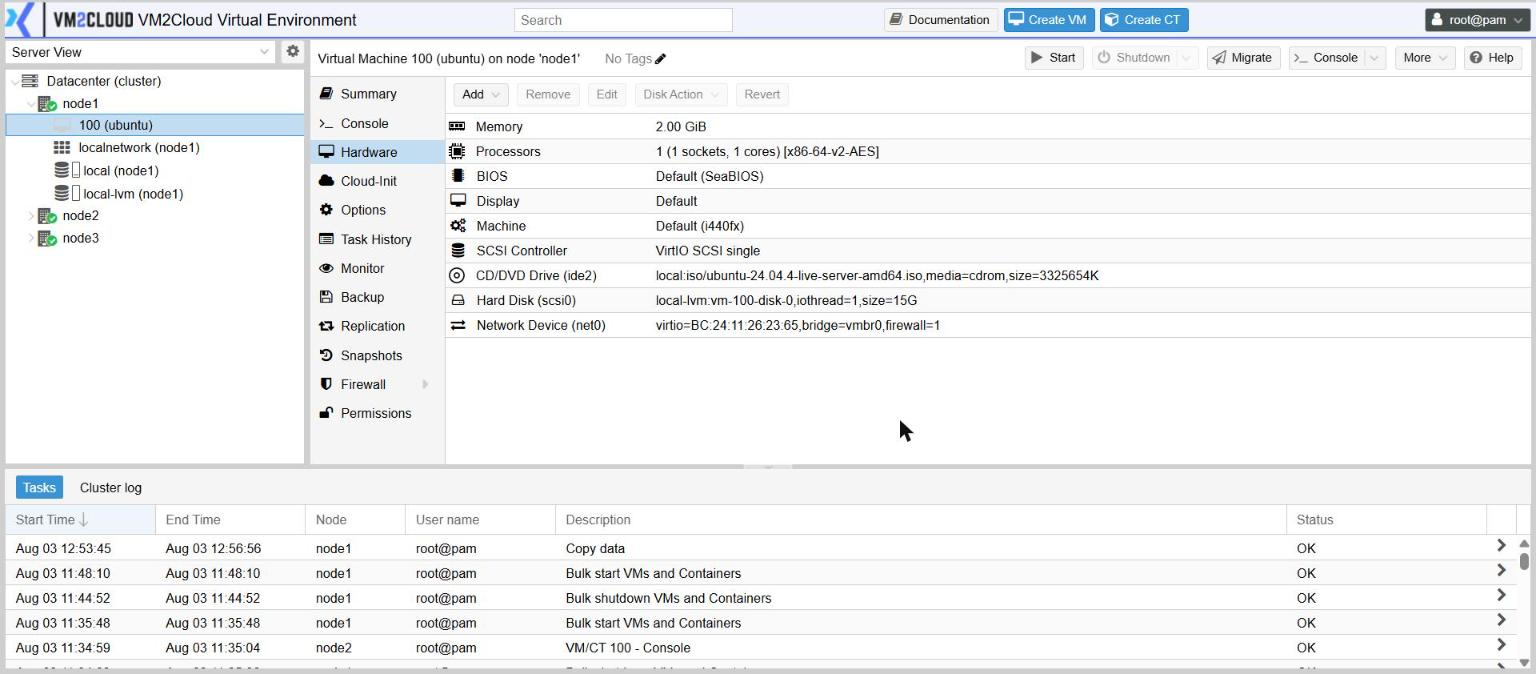
Add offers:
| Type | What it is for |
|---|---|
| Hard Disk | Another virtual disk |
| Import Hard Disk | Attach a disk image staged on a storage that accepts Import content |
| CD/DVD Drive | Installation media |
| Network Device | Another network adapter |
| EFI Disk | Required for UEFI boot |
| TPM State | Required by operating systems that demand a TPM |
| USB Device / PCI Device | Pass a physical device through to the guest |
| Serial Port | A serial console |
| CloudInit Drive | Delivers the Cloud-Init settings |
| Audio Device, VirtIO RNG | Sound; a source of randomness |
| Virtiofs | Share a directory from the host into the guest |
Resizing or moving a disk
Section titled “Resizing or moving a disk”Select the disk and use Disk Action. It holds resize, move to a different storage, and reassign to another guest — the answers to “the disk is full” and “this machine is on the wrong storage”.
Growing the virtual disk does not grow the filesystem inside the guest; do that from within the guest afterwards.
Cloud-Init
Section titled “Cloud-Init”Sets what a machine configures itself with on first boot: user name, password, SSH keys, DNS and IP addressing. Combined with a template, this is how a clone comes up ready to use without touching the console.
After changing anything here, use Regenerate Image so the guest picks the change up on its next boot.
Options
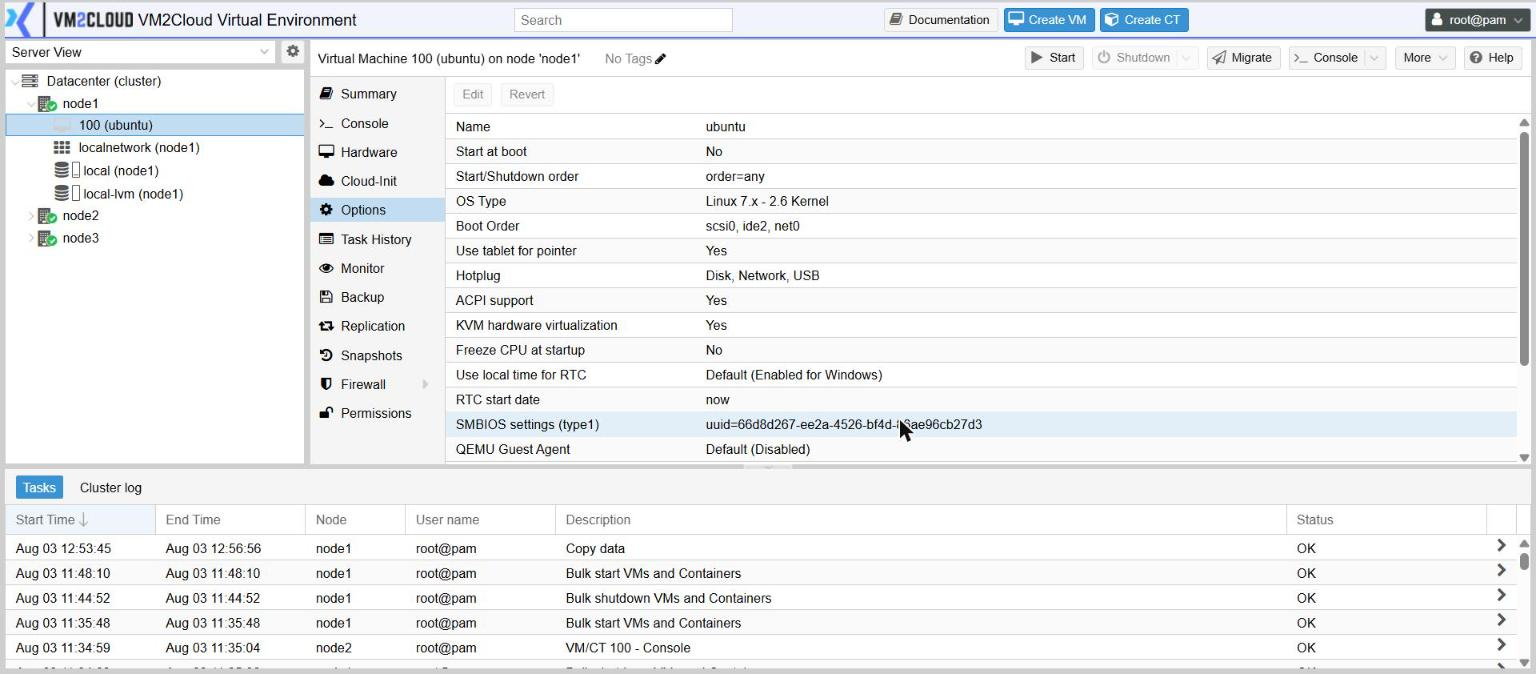
Section titled “Options”| Setting | Why it matters |
|---|---|
| Start at boot | Off by default. After a power cut, machines do not come back unless this is on. |
| Start/Shutdown order | Decides sequence — a database before the application that needs it. |
| Boot Order | Which device the machine tries first. |
| QEMU Guest Agent | Off by default. See below. |
| Protection | Blocks deleting the machine and its disks. |
| Hotplug | Which kinds of hardware may be added while it is running. |
| OS Type | Tunes defaults for the operating system installed. |
Task History
Section titled “Task History”Everything done to this guest — starts, stops, backups, migrations — with who did it and whether it worked. The first place to look when something behaved unexpectedly.
Backup
Section titled “Backup”Back this guest up now, and restore it from any archive on a storage.
| Button | What it does |
|---|---|
| Backup now | An immediate backup, independent of any scheduled job |
| Restore | Restore the selected archive |
| Show Configuration | The guest’s hardware as it was when that backup was taken |
| Edit Notes | Label an archive, so you know why it exists |
| Change Protection | Exempt an archive from being pruned |
Show Configuration is what answers “what did this machine look like before we changed it”.
See Backups and restore.
Replication
Section titled “Replication”Scheduled copies of this guest’s disks on other nodes, with Log for the last run and Schedule now to run immediately. See Replication.
Snapshots
Section titled “Snapshots”A point-in-time state you can return to. Take Snapshot, then Rollback to go back. Including memory (RAM) means a rollback resumes the machine mid-run rather than booting it.
Firewall
Section titled “Firewall”Rules for this guest’s network adapters, with Options, Alias, IPSet and Log.
Guest rules only take effect when the firewall is enabled at datacenter level, at guest level, and on the individual network adapter. See Firewall.
Permissions
Section titled “Permissions”Who may use this guest, and with which role. Granting here is the same as granting at the
path /vms/<id> under Datacenter → Permissions.
Cloning, templates and migration
Section titled “Cloning, templates and migration”More → Clone copies the guest. You choose the target node, a new ID and name, the target storage, and — where available — whether it is a full copy or a linked copy that shares the original’s disk.
More → Convert to template turns the guest into a template. Templates cannot be started, only cloned, and cloning from one can be near-instant. This is how you build a standard image once and stamp out machines from it.
More → Manage HA adds this guest to high availability without going to Datacenter → HA.
Migrate moves the guest to another node. The dialog shows warnings before it starts — storage the target cannot reach, or devices it does not have. Address those first.
Creating a guest
Section titled “Creating a guest”Create VM and Create CT in the header open the wizards. Both carry Add to HA on their first tab, so a machine can be made highly available as it is created.
For virtual machines see Creating a virtual machine; for containers see Containers.