

Firewall
VM2Cloud VE has a firewall at three levels, plus one for virtual networks. They share one rule editor and one set of reusable objects.
| Level | Where | Applies to |
|---|---|---|
| Datacenter | Datacenter → Firewall | Everything in the cluster |
| Node | node → Firewall | That server’s own traffic |
| Guest | guest → Firewall | That machine’s network adapters |
| Virtual network | Datacenter → SDN → VNet Firewall | Traffic on an SDN network |
Rules are evaluated from the outside in — datacenter first, then node, then guest.
Read this before you enable anything
Section titled “Read this before you enable anything”There are two switches, and both must be on.
- Datacenter → Firewall → Options → Firewall is the master switch. It is off on a new installation.
- node → Firewall → Options → Firewall is on by default.
So on a fresh system you can write a complete rule set, see it listed, and have none of it enforced — because the master switch is off.
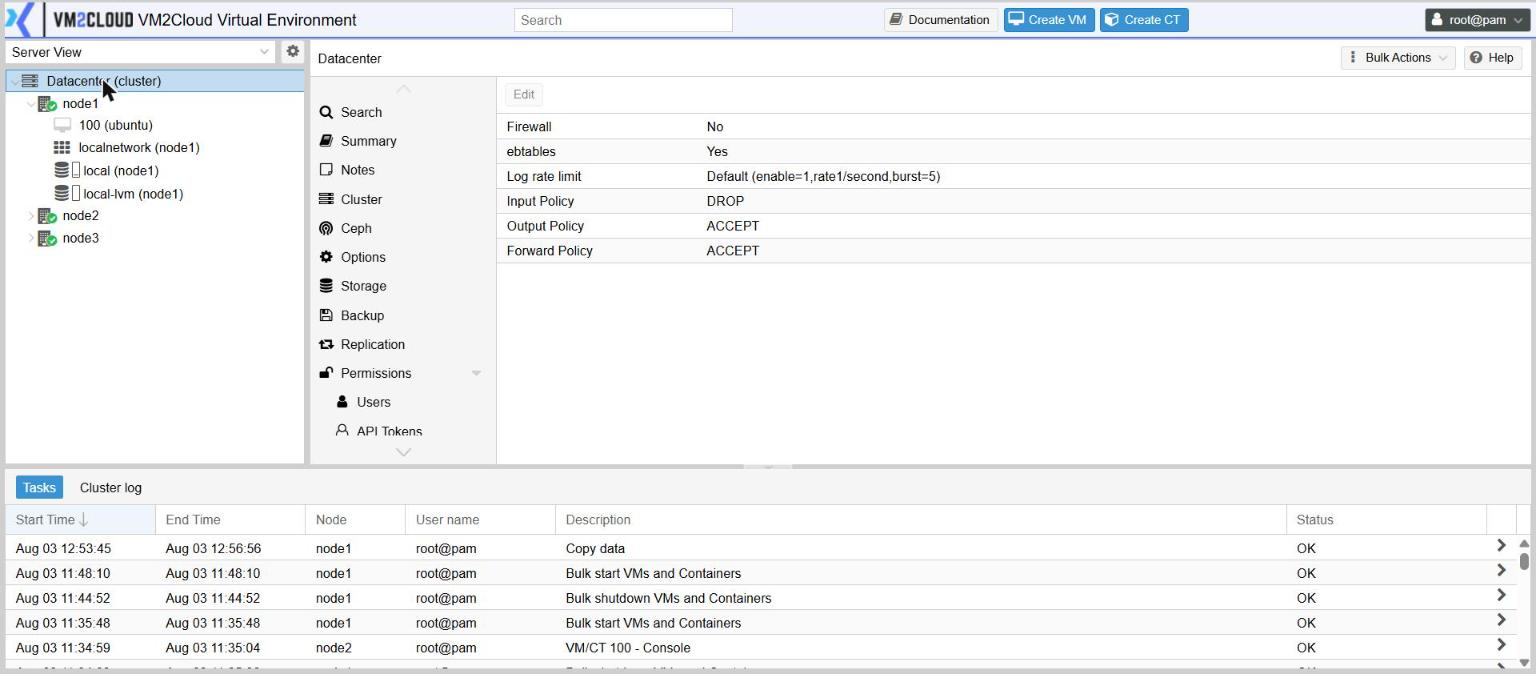
The same panel shows what happens to traffic no rule matches:
| Policy | Default |
|---|---|
| Input Policy | DROP |
| Output Policy | ACCEPT |
| Forward Policy | ACCEPT |
The safe order
Section titled “The safe order”- Datacenter → Firewall → Add a rule: direction in, action ACCEPT, source your management network, and the macro or port for the web interface.
- Add whatever else must keep working — name resolution, monitoring, backups.
- Review the list.
- Only then, Datacenter → Firewall → Options → set Firewall to Yes.
- Confirm you are still connected, from a second browser session you did not use to make the change.
Writing a rule
Section titled “Writing a rule”- Open the firewall at the level you want.
- Click Add.
- Fill in the dialog:
| Field | What it means |
|---|---|
| Direction | in — traffic arriving. out — traffic leaving. |
| Action | ACCEPT, DROP (silently discard) or REJECT (refuse and say so). |
| Macro | A named service that fills in protocol and ports for you. Prefer this. |
| Protocol, Source port, Dest. port | Only needed when you are not using a macro. |
| Source, Destination | An address, a network in CIDR form, an Alias, or an IPSet written with a + in front. |
| Interface | Restrict the rule to one network interface. |
| Log level | Whether matches are logged. |
| Comment | Why this rule exists. Fill it in. |
- Click Add.
Reusable objects
Section titled “Reusable objects”Rather than repeating addresses across rules, name them once.
| Object | Holds | Referenced as |
|---|---|---|
| Alias | One address or network | its name |
| IPSet | Many addresses or networks | +name |
| Security Group | An ordered set of rules | inserted with Insert: Security Group |
Use an Alias for a single thing — the backup server, the monitoring host. Use an IPSet for a collection — all office networks, all management networks. Change the object and every rule using it follows.
A Security Group is a whole named policy. Build one for, say, a web server, then insert it into every web server’s firewall. Editing the group updates them all.
To build an IPSet: Create the set, select it, then Add entries to it.
Node-level options
Section titled “Node-level options”node → Firewall → Options carries the node’s own switches:
| Setting | Purpose |
|---|---|
| Firewall | On/off for this node — still subject to the datacenter master switch |
| SMURFS filter | Blocks a class of broadcast amplification traffic |
| TCP flags filter | Rejects nonsensical TCP flag combinations |
| NDP | Allows IPv6 neighbour discovery. Leave on where IPv6 is in use. |
Datacenter-level options add ebtables and a Log rate limit, which caps how much the firewall writes when many packets match a logging rule.
Guest firewall
Section titled “Guest firewall”A machine’s rules need three things on:
- The datacenter master switch.
- guest → Firewall → Options → Firewall.
- The firewall toggle on the individual network adapter, under guest → Hardware.
Miss the third and the guest’s rules silently do nothing.
Seeing what the firewall did
Section titled “Seeing what the firewall did”node → Firewall → Log and guest → Firewall → Log show traffic the firewall acted on. Live Mode follows it as it happens.
If something goes wrong
Section titled “If something goes wrong”| What you see | What to do |
|---|---|
| Rules seem to do nothing | The datacenter master switch is off. Everything below it is inert. |
| Guest rules do nothing, node rules work | The firewall toggle on that machine’s network adapter is off. |
| You lost the web interface after enabling the firewall | You are locked out. Use console access to the server, or contact support. |
| Something is blocked and you cannot tell why | Set Log level on the rules you suspect, reproduce it, and read Firewall → Log. |
| A rule works on one machine but not another | Check whether it came from a security group that only one of them includes. |
Still stuck? Contact VM2Cloud support.