

Users, roles and permissions
Everyone who administers a VM2Cloud VE node should have their own account. Sharing the root
sign-in means no audit trail, no way to remove one person’s access, and no way to limit what
someone can reach.
This guide adds a user, grants them scoped access, and turns on two-factor authentication.
How access is decided
Section titled “How access is decided”Three things combine to grant access:
| Concept | What it is |
|---|---|
| User | Who is signing in, written as name@realm — for example jsmith@pve. |
| Role | A named bundle of privileges, such as VM2CloudVMAdmin. |
| Permission | A role granted to a user or group, at a path — for example /vms/101. |
The path is what makes access specific. Granting a role at / covers everything; granting the
same role at /vms/101 covers only that one machine. Always grant at the narrowest path that
still lets the person do their job.
Realms
Section titled “Realms”- Linux PAM standard authentication (
pam) — accounts that also exist on the node’s operating system.root@pamis the account created during installation. - VM2Cloud Virtual Environment authentication server (
pve) — accounts that exist only inside VM2Cloud VE. Use this for everyday administrators: no operating-system account is created, so the account cannot be used to log into the server itself.
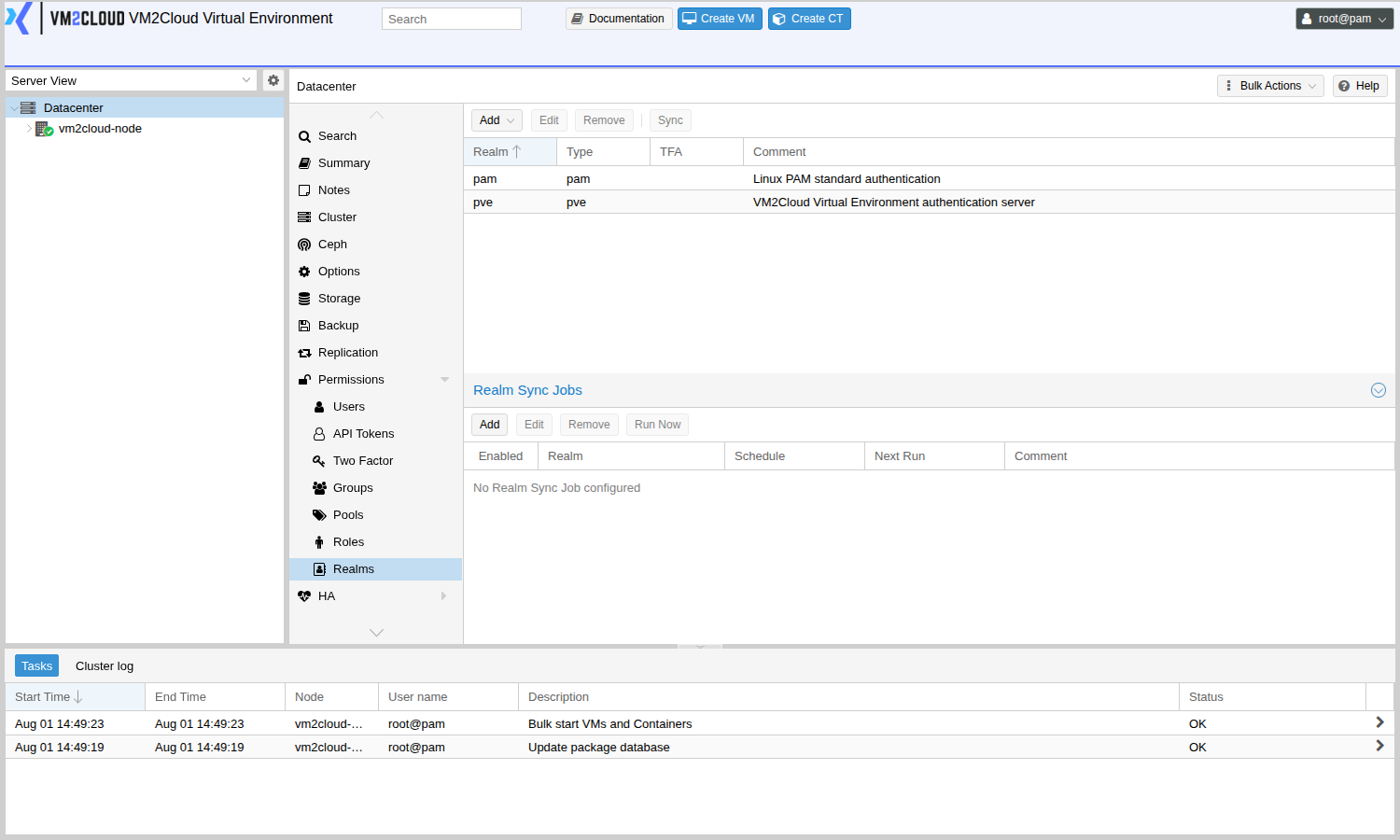
Additional realms for a central directory can be added under Datacenter → Permissions → Realms.
1. Create a group
Section titled “1. Create a group”Grant permissions to groups rather than to individuals — then adding or removing a person is one change in one place.
- Open Datacenter → Permissions → Groups.
- Click Create.
- Enter a Name, for example
vm-operators, and an optional comment. - Click Create.
2. Create a user
Section titled “2. Create a user”- Open Datacenter → Permissions → Users.
- Click Add.
- Enter a User name.
- Set Realm to VM2Cloud Virtual Environment authentication server. Do this before
the next step — the password fields only appear once this realm is selected, because
pamaccounts use the operating system’s own password. - Set a Password, and fill in the name and e-mail fields if you want them recorded.
- Set Group to the group you just created.
- Leave Enabled ticked, and set an Expire date if the access should lapse.
- Click Add.
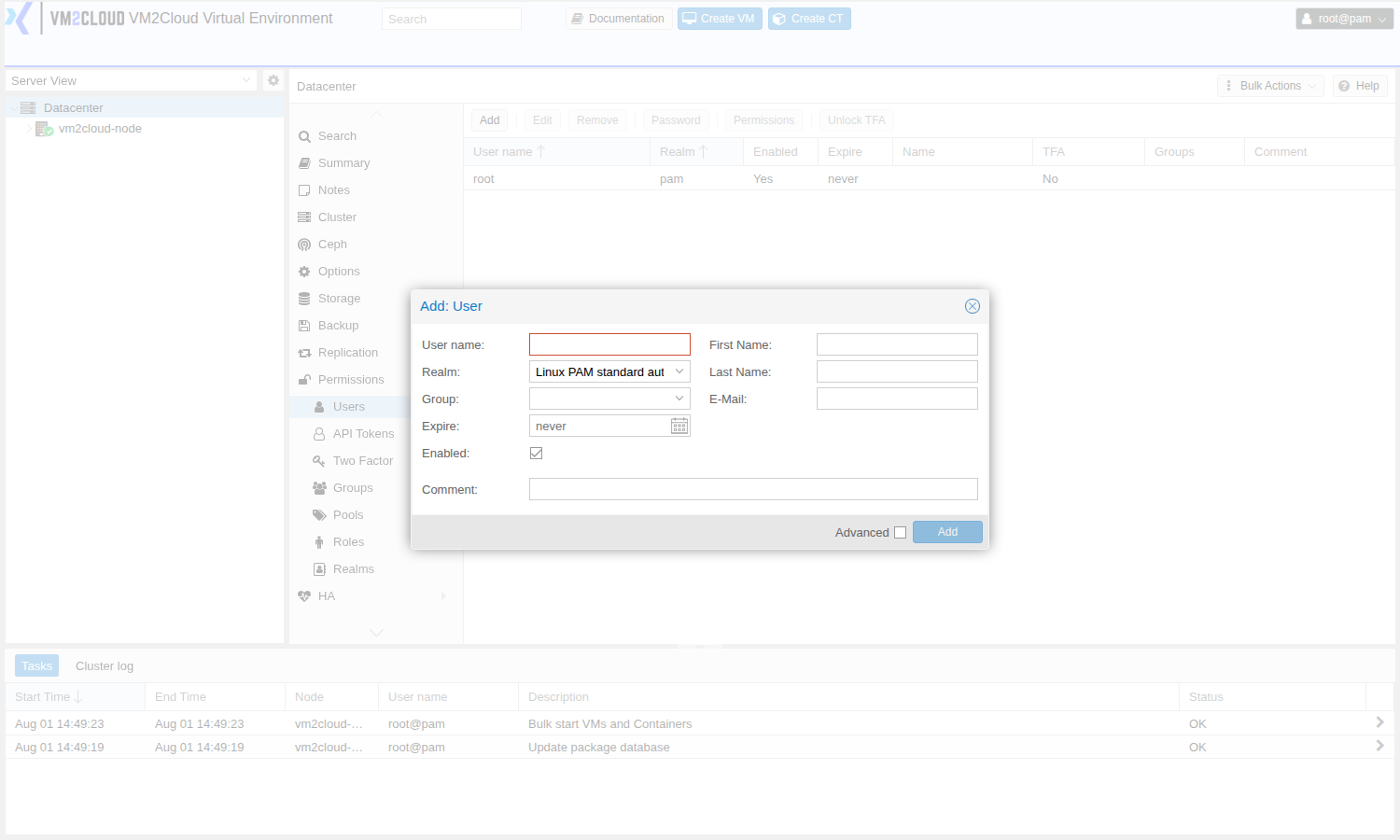
The user exists but can see nothing yet — a new account carries no permissions at all.
3. Grant permissions
Section titled “3. Grant permissions”- Open Datacenter → Permissions.
- Click Add, then Group Permission.
- Set Path to the scope being granted:
/— the whole system/vms— all virtual machines/vms/101— one specific machine/storage/local— one storage/nodes/vm2cloud-node01— one node
- Set Group to your group.
- Set Role — see the table below.
- Tick Propagate so the permission applies to everything beneath the path.
- Click Add.
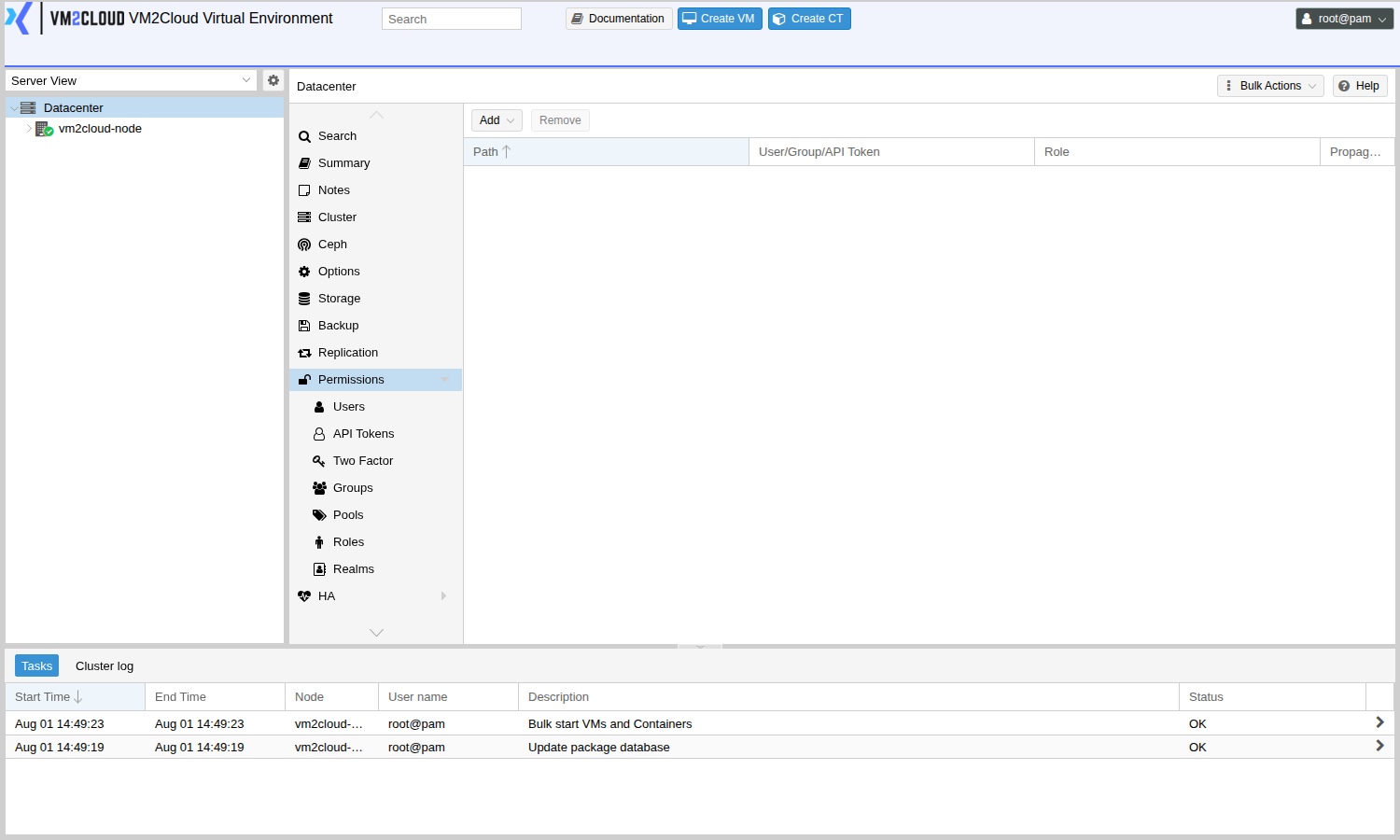
Commonly used roles
Section titled “Commonly used roles”| Role | What it allows |
|---|---|
VM2CloudAuditor |
Read-only. Can view configuration and status, change nothing. |
VM2CloudVMUser |
Day-to-day use of a machine: start, stop, open the console, and back up or restore it. Also allows changing the CD/DVD media, editing cloud-init — which sets the guest’s user, password, SSH keys and IP addressing — and, where the guest agent is installed, reading and writing files inside the guest. It cannot change CPU, memory, disks or network adapters. |
VM2CloudVMAdmin |
Full control of a machine, including its hardware and disks. |
VM2CloudTemplateUser |
Clone from a template, and view it. Nothing else. |
VM2CloudDatastoreUser |
Allocate space on a storage — enough to create virtual machine disks. Uploading ISO images needs VM2CloudDatastoreAdmin. |
VM2CloudAdmin |
Broad administration of guests, storage, pools, SDN, users and groups. Cannot grant permissions, add authentication realms, edit device mappings, change a node’s system or network settings, power-manage a node, or use Download from URL. |
Administrator |
Everything, including changing other people’s access. |
There are matching VM2Cloud…Admin roles for the other areas — Sys, Datastore, SDN,
User, Pool and Mapping — for delegating one part of the platform without granting the rest.
To see exactly what a role covers, or to build one with a narrower set of privileges, open Datacenter → Permissions → Roles. Each role lists the individual privileges it grants.
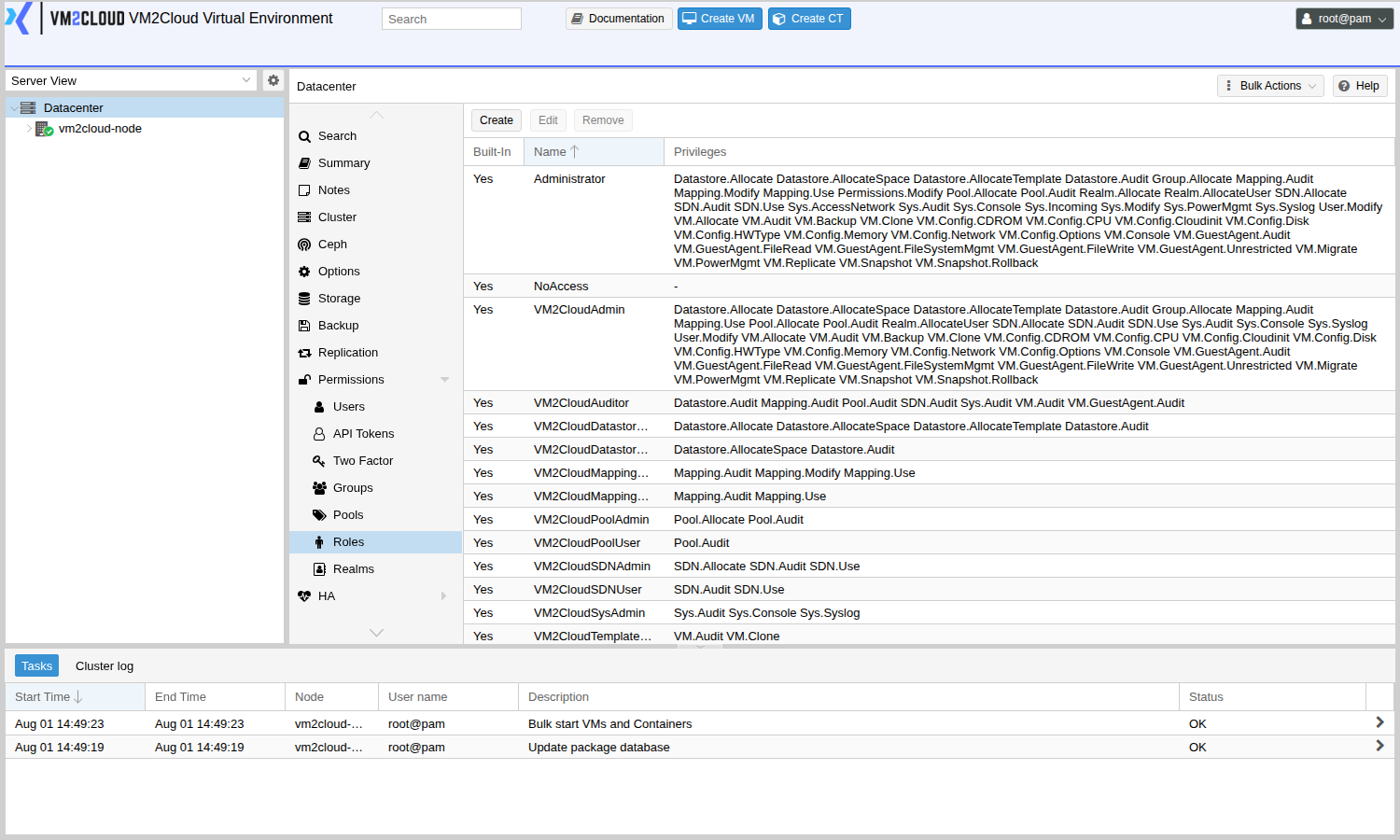
4. Check the result
Section titled “4. Check the result”The honest test is to sign in as the user.
- Open a private browser window.
- Go to the node and sign in as the new user, choosing the VM2Cloud Virtual Environment authentication server realm.
- Confirm they can see what they should — and cannot see anything else.
A user who signs in successfully but sees an empty Server View has no permissions granted yet; re-check the path in step 3.
5. Turn on two-factor authentication
Section titled “5. Turn on two-factor authentication”Strongly recommended for every account that can change anything.
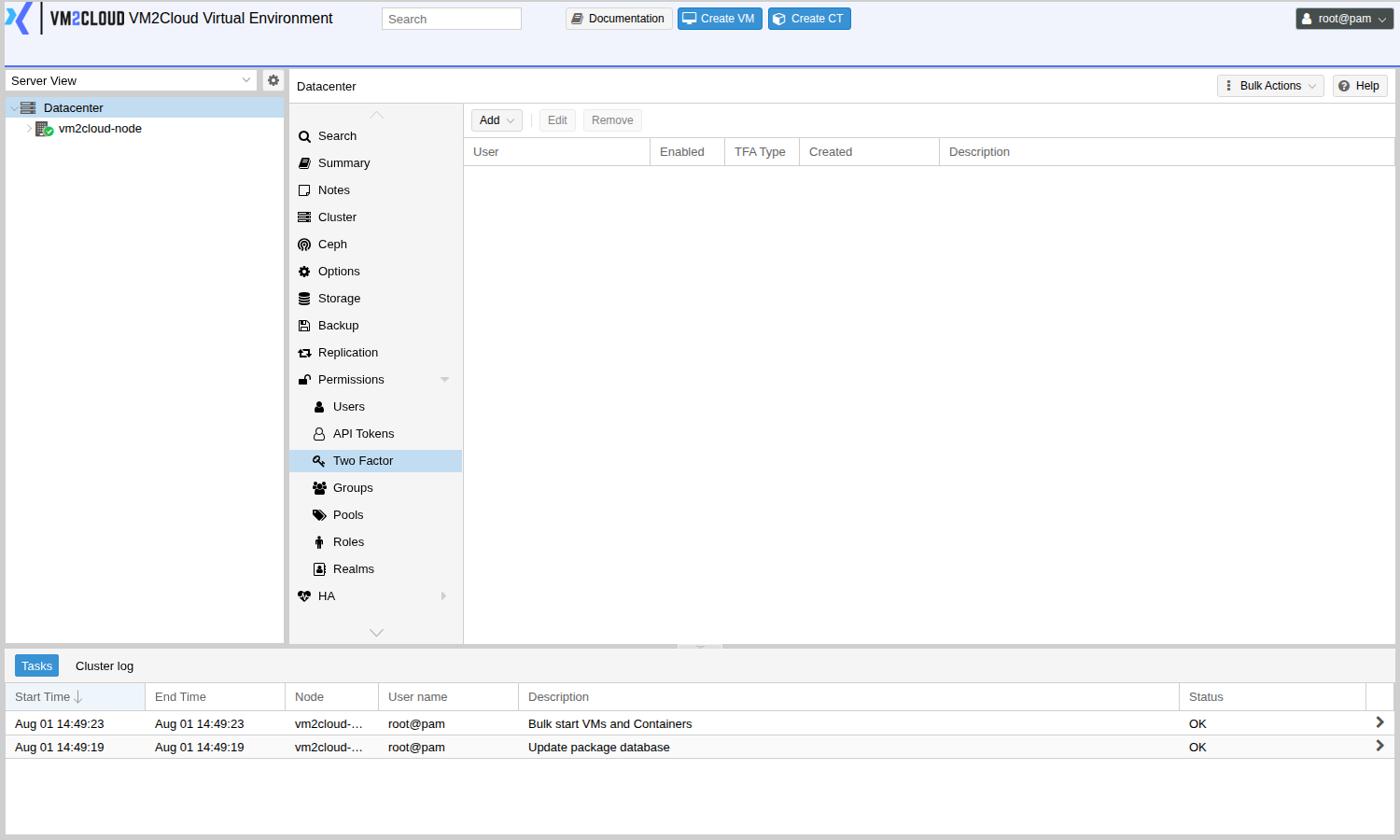
- Open Datacenter → Permissions → Two Factor.
- Click Add, then choose the method:
- TOTP — a code from an authenticator app.
- WebAuthn — a hardware security key or platform authenticator.
- Recovery Keys — a set of one-time codes to store somewhere safe.
- Yubico OTP — a YubiKey validated against a Yubico validation server.
- Follow the prompts to enrol, and confirm with a code from the device.
API tokens — for scripts and automation
Section titled “API tokens — for scripts and automation”A token authenticates a program without embedding someone’s password.
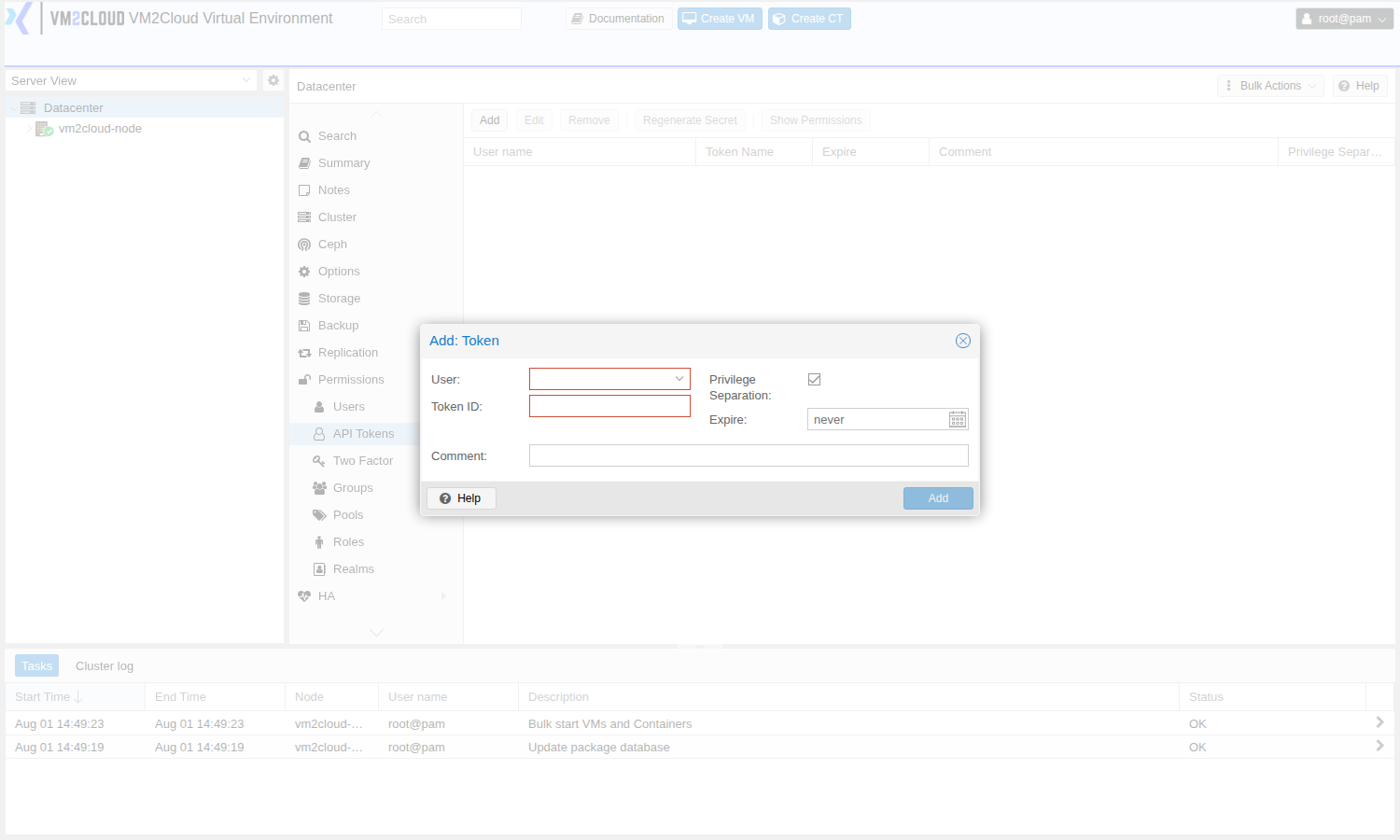
- Open Datacenter → Permissions → API Tokens.
- Click Add.
- Select the User the token belongs to and give it a Token ID naming its purpose.
- Leave Privilege Separation ticked, so the token gets only the permissions you give it.
- Click Add, and copy the secret that is shown.
- Give the token its own permissions: open Datacenter → Permissions, click Add and choose API Token Permission. Set the Path, select the token under API Token, choose a Role and click Add.
Revoke a token by deleting it. Nothing else about the user’s access changes.
Good practice
Section titled “Good practice”- Give each person their own account; keep
rootfor recovery only. - Grant to groups, at the narrowest path that works.
- Turn on two-factor authentication for anyone who can change things.
- Use a separate token per integration, so one can be revoked without affecting the rest.
- Review Datacenter → Permissions when someone changes role or leaves.
If something goes wrong
Section titled “If something goes wrong”| What you see | What to do |
|---|---|
| The user signs in but the Server View is empty | No permissions are granted. Add one at the right path, with Propagate ticked. |
| “Permission denied” on a specific action | The role does not include that privilege. Check it under Datacenter → Permissions → Roles. |
| The user cannot open a console | Console access needs at least VM2CloudVMUser on that machine. |
| A locked-out account after losing a 2FA device | Sign in as another administrator and remove that account’s second factor under Two Factor. |
| A script stops working after a token change | Tokens with privilege separation need their own permissions — granting the user access is not enough. |
Still stuck? Contact VM2Cloud support.